
Fix TM Sim No Signal 2026 | Use Diagnostic Codes

Are you suddenly seeing a “No Signal” error on your Globe or TM SIM? Many users face this common issue; you are not alone. Globe/TM SIM no signal error can happen for several reasons, such as network issues, incorrect phone settings, or SIM card problems.

The good news is that you can easily fix this issue using simple troubleshooting methods like enabling Airplane Mode, restarting your phone, or using diagnostic codes.

Reasons Why Globe and TM SIMs Have No Signal

There are several reasons for the ”TM-SIM No signal” error, but these are the most common causes:
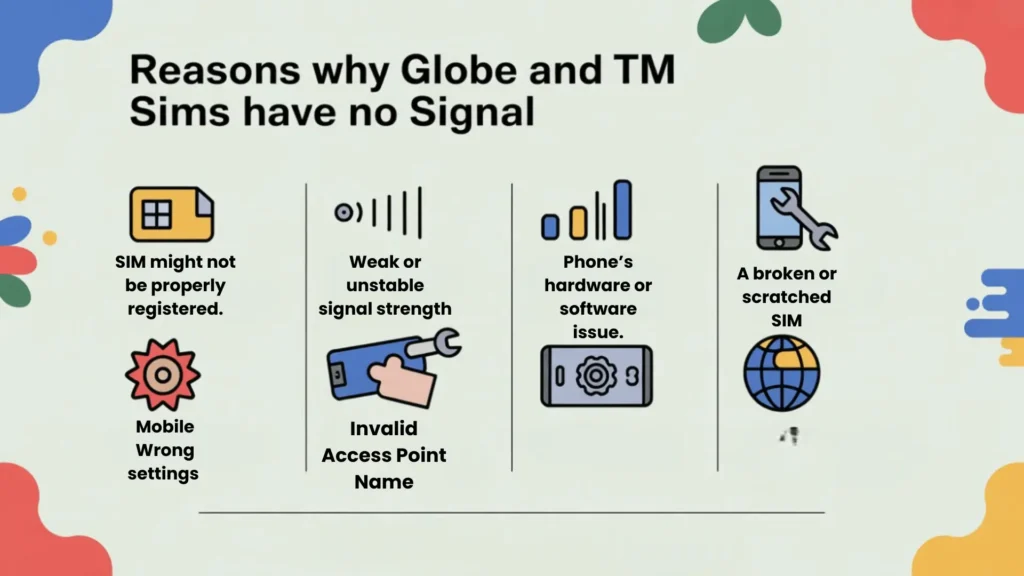
Reasons Why Globe and TM SIMs Have No Signal
  • Weak or unstable signal strength can affect SIM functionality.
  • An issue in the Phone’s hardware or software can disrupt SIM detection.
  • A broken or scratched SIM may not be readable by your Phone.
  • If airplane mode is enabled, all network signals are blocked.
  • Wrong settings on the mobile.
  • Invalid Access Point Name (APN) settings can cause this error.

How to Fix the “No Signal” Issue on Android?

If your SIM shows a “No Signal” error on your Android phone, please try these tested solutions:

How to Fix the "No Signal" Issue on Android?

1. Enable Airplane Mode

  • Enable airplane mode on your mobile for 30 – 60 seconds, then turn it off.
  • This will reset your signal and improve connection stability.

2. Reinsert the SIM Card

  • Power off your mobile Phone and remove the SIM card.
  • Clean the SIM card properly and reinsert it into your Phone.
  • Power on your Phone and check the signal status.

3. Restart Your Mobile Phone

  • If enabling airplane mode does not work, simply restart your mobile Phone. 
  • Restarting your mobile Phone will fix minor glitches in the network.

4. Reset Network Settings

  • Go to Settings > System > Reset options, then tap “Reset Wi-Fi, Mobile & Bluetooth” to clear outdated configurations. Manually Choose Your Carrier: Navigate to Settings > Connections > Mobile Networks > Network Operators. Select “Choose manually”, then pick Globe or TM from the available networks.

5. Check Carrier Updates

  • Check if any new updates are available for your mobile Phone.
    Open your Phone’s settings> About Phone> Updates > Update your Phone if available.
  • Sometimes, the ”TM SIM no signal” error occurs due to mobile updates.

6. SIM card is activated

  • If you’ve just bought a new SIM, make sure it’s activated by dialing 143#. If it hasn’t been activated yet, contact Globe support. Activate your SIM card properly and then check the signal status. This error sometimes occurs due to “Sim is not registered”.

7. Use Diagnostic Codes

SIM Check Process: Enter the code (*#*#64663#*#*) into your mobile phone call dialer. Once the test screen appears, select the “SIM Detect” option. This will help you identify the issue.

Network Refresh: Dial *#*#4636#*#* in your Phone’s dialer. Find the Radio Power Option, turn Mobile Radio Power off, then turn it on again to refresh your network connection.

8. Insert the SIM into Another Phone

  • Check the signals by inserting your SIM in another mobile if the above methods do not work.
  • If the SIM does not work in another mobile as well, then the problem is in the SIM, and if it works properly there, then the problem is in your mobile.

9. Enable Data Roaming

  • Go to Settings > Mobile Networks > Data Roaming and turn it on. 
  • Enabling data roaming can help your device reconnect to the network, but if the issue persists, you can turn it off again.

Note: As of December 2, 2022, users cannot pasaload TM through ussd code. Users can now buy a load through different apps, such as GlobeOne

TM-SIM no Signal iOS Troubleshooting

Follow these tested steps if you are using an iPhone and you are getting the ”TM SIM no signal” error.
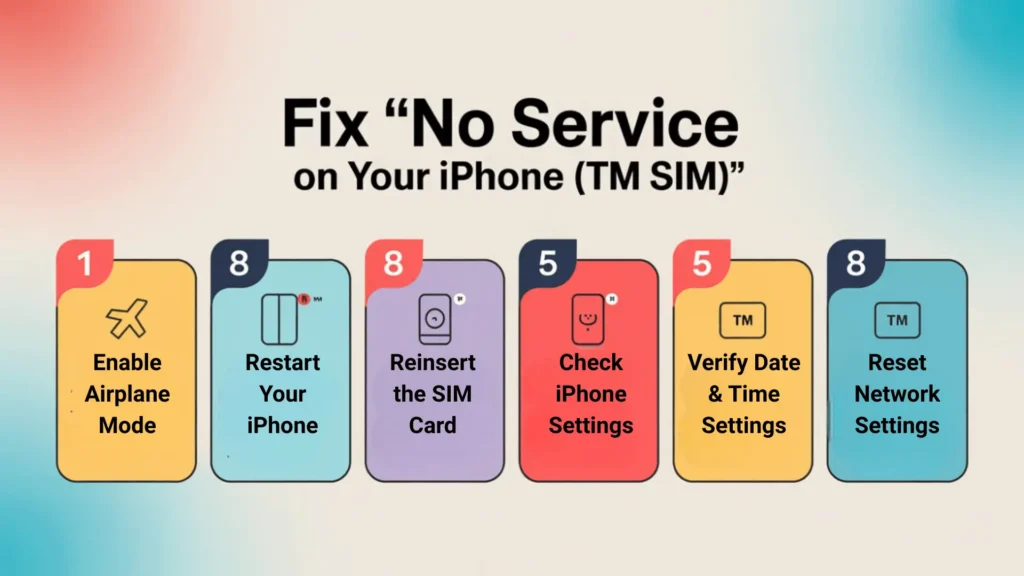
TM No Service iOS Troubleshooting

1. Enable Airplane Mode

  • Turn on Airplane Mode on your iPhone for 30 to 60 seconds.
  • This will help the “No signal” and fix the error as well.

2. Restart Your iPhone

  • If airplane mode doesn’t work, then turn off your iPhone for 30 – 60 seconds and then restart your iPhone.
  • This will fix minor network glitches.

3. Reinsert the SIM Card

  • If the issue still persists, then remove the SIM card and clean it softly, then reinsert the SIM in your iPhone.
  • Make sure that the SIM is properly seated in the tray.

4. Check iPhone Settings

  • Go to iPhone settings: Open Mobile Service > Network Selection. Ensure that Automatic selection is turned on.
  • Mobile Data Options: Open Settings and go to Mobile Data Options. Tap Voice & Data, then select 5G On or LTE (Select LTE if 5g is not available)

5. Verify Date & Time Settings

  • Go to your iPhone’s Settings, then General > select Date & Time > Turn on Set Automatically.
  • Sometimes, a “No Signal” error happens due to incorrect time or time zone settings.

6. Update iPhone Software

  • Open your iPhone settings and click on updates and update, if new updates are available.
  • After updating, restart your iPhone and check the signal status.

7. Reset Network Settings

  • Open your iPhone settings and reset network settings. 
  • Type the password and confirm. The saved network settings will be removed, and now check the signal status.

8. Try Your SIM in Another Phone

  • If all the methods I have provided do not work, then try your SIM in another phone. If the SIM doesn’t work, then the problem is with the SIM; if the SIM works, then there is an iPhone error.

Note: If all of these methods do not work, then contact Globe support. They will assist you and make sure that your SIM is now working properly.

How to Fix SIM Connection Abroad

If you’re currently abroad and facing the “No signal” error, follow these methods to resolve this issue.

How to Fix SIM Connection Abroad

1. Enable International Roaming

  • For Android: Open your Android settings, then Connections, then Mobile Networks, and turn on Roaming.
  • For iOS: Open your iPhone settings, Cellular, and select Cellular Data Options, and turn on Roaming.

2. Manually Select a Network

  • Android: Navigate to Settings > Connections > Mobile Networks > Network Operators. Select “Choose manually”, then pick the strongest network.
  • iPhone: Navigate to iPhone settings, Cellular, and select Network Selection, Turn off “Automatic”, then select the strongest local network.

3. Restart or Power Off Your Phone

  • Restart your Android/iPhone for 30-60 seconds and then check the signal status.
  • This will fix the minor glitches in the network, or if it doesn’t work, power off your Phone for 30-60 seconds and check the signal status again.

4. Check for Carrier Updates

  • Go to settings and check for any new updates on your Android/iPhone, and update the Phone if available.
  • Sometimes, a ”no signal” error occurs due to an update.

5. Verify Roaming Activation

  • Verify roaming activation by contacting Globe support. Also, verify that you have enough credit or a valid roaming package.

6. Inspect Your SIM Card or eSIM

  • Take out your SIM card and gently wipe it with a soft cloth to remove any dust or debris. Insert it back properly into the SIM slot.
  • If you’re using an eSIM instead, make sure the correct profile is selected and active in your Phone’s settings. After updating, restart your iPhone and check the signal status.

TM SIM No Signal With Globe Network

If you’re currently abroad and facing the “No signal” error, follow these methods to resolve this issue.
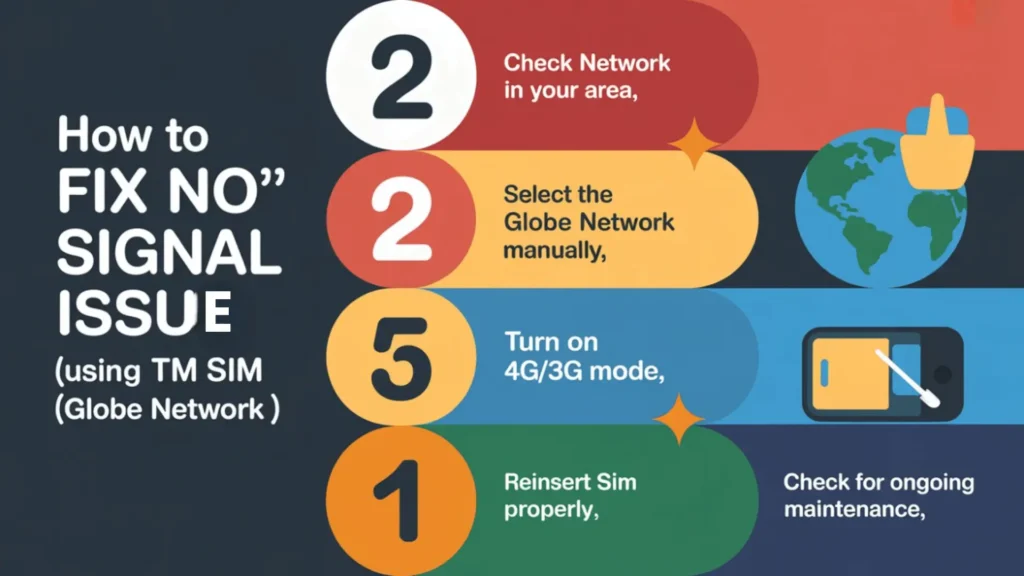
TM SIM No Signal With Globe Network

1. Check the Network in Your Area

  • Make sure you’re in a place where Globe signals are available. Poor signal areas can cause network issues.

2. Select the Globe Network Manually

  • Go to your mobile phone settings and manually choose Globe.

3. Turn on 4g/3g mode

  • Android: Go to Settings > Mobile Network > Preferred Network Type, and choose 4G/3G/2G (Auto).
  • iPhone: Go to Settings > Cellular > Cellular Data Options, and turn on 4G.

4. Reinsert the SIM Properly

  • Remove your SIM, clean it gently, and place it back properly in its tray.

5. Check for Ongoing Maintenance

  • Sometimes, the network is down for maintenance.
  • You can check Globe or TM’s official pages or contact their support for updates.

Check TM Signal Status in Your Area

With verified practical methods, you can easily monitor your TM SIM signal status in your area without any difficulty and troubleshoot these issues, such as unstable data or dropped calls. These verified methods are:

  • Use the GlobeOne app, which can show you your SIM signal status.
  • You can ask people who use Globe or TM SIMs about the signal status.
  • Check the Signal bars in your phone: If the signal bar in your mobile phone is showing all, then you have a good network connection.
  • Test the SIM in another phone. If the SIM signal comes in the other phone, then the issue is with your mobile phone.
  • Enable Field/Test Mode on your mobile phone or you can visit websites like down detector to check the signal strength.
  • Check your phone’s Network settings. Make sure that your mobile phone settings are set to automatic selection and network mode.

Note: Sometimes a TM SIM no signal error occurs due to bad weather, your location, or how far you are from the SIM signal tower.

TM SIM Roaming Service Availability

  • Nepal, Brunei, Iran, Saipan, Sri Lanka, China, Yemen, Mongolia, Palestine, Guam, Bhutan, Fiji, Iraq, Maldives, Jordan, Uzbekistan, Nauru, Micronesia, Azerbaijan, Bangladesh, Guinea, Bahrain, Taiwan, etc.
  • Grenada, Paraguay, Ecuador, Honduras, Brazil, Venezuela, Cuba, Peru, Bermuda, Nicaragua, Argentina, Mexico, Puerto Rico, Costa Rica, Dominican Republic, Haiti, Bolivia, Jamaica, Greenland, Panama, Barbados, Chile, Colombia, Dominica, etc.
  • Guernsey, Romania, Denmark, Macedonia, Switzerland, France, Estonia, Serbia, Faroe Islands, Russia, Finland, Jersey (North of France), Slovakia, Armenia, Gibraltar, Malta, Norway, United Kingdom, Ukraine, Georgia, Slovenia, Belarus, Ireland, Iceland, Moldova, Lithuania, Bulgaria, Sweden, Liechtenstein, Albania, Latvia, San Marino, Isle of Man, Poland, Belgium, Portugal etc.
  • Burundi, Nigeria, Cape Verde, Andorra, Guinea-Bissau, Benin, Uganda, Gabon, Niger, Botswana, Mali, Tanzania, Seychelles, Sudan, Algeria, Central African Republic, Madagascar, Togo, Morocco, Liberia, Malawi, Guinea, Bosnia, Cameroon, Tunisia, Angola, Senegal, Zambia, Ghana, Ethiopia, South Africa, Libya, Kenya, Lesotho, Burkina Faso, Sierra Leone, Namibia.

Temporarily Deactivated Roaming Service

These are some countries where roaming services are temporarily deactivated.

  • Pakistan, Mozambique, Gambia, Benin, Mongolia, Swaziland, and Burundi.

TM/Globe Customer Support

After trying all the basic troubleshooting steps we have provided, if your TM SIM shows no signal, contact Globe support. Their dedicated team will assist you, and your issue will be resolved in no time.

They can also tell you whether the SIM signal is down in your area or if your SIM has issues and you have to replace it.

1. TM Customer Support:

  • Dial 211 if you are using a Globe/TM number to call
  • Dial (02) 7730-1000 if you are using a landline number.

2. GlobeOne App:

  • Open the GlobeOne app and click on the ‘’help’’ button.
  • For instant support, use Live Chat.
  • Moreover, you can also file a ticket for your issue.

If the issue is with your SIM and you have to register it again, then make sure you have a valid ID of yours and the affected SIM.

When Should You Replace Your TM SIM?

Replace your SIM if your SIM has issues that are below:

  • Your SIM shows ‘’no service’’ in multiple phones.
  • The old, damaged, or SIM is cut incorrectly.
  • Your SIM is active but has no signals.

Tips to Prevent TM Signal Problems

  • Do not trim your SIM card manually
  • Update your mobile phone software regularly.
  • Avoid removing the SIM too frequently.
  • Before traveling to rural areas, check signal strength.

Frequently Asked Questions

These are the most common causes for TM SIM no signal.

  • Weak or unstable signal strength can affect SIM functionality.
  • An issue in the Phone’s hardware or software can disrupt SIM detection.
  • A broken or scratched SIM may not be readable by your Phone.
  • Wrong settings of the mobile.
  • APN settings can cause this error.
  • SIM might not be properly registered.

Fix the TM Sim no signal error by using these tested methods.

  • Enable Airplane Mode.
  • Restart Mobile Phone.
  • Reinsert the SIM Card.
  • Check for Mobile Updates.
  • Insert the SIM into Another Phone.
  • Use Diagnostic Codes.

If the “No signal” error doesn’t go away after troubleshooting, then contact Globe support. Globe support assists you in troubleshooting this error.

If you are in another country and getting a “No signal” error, then follow these tested methods:

  • Enable International Roaming.
  • Manually Select a Network.
  • Restart or Power off your Mobile.
  • Check for Carrier Updates.
  • Verify Roaming Activation.

There are many countries where the SIM roaming service is not available.

  • Burundi
  • Pakistan
  • Mongolia
  • Mozam
  • Bique
  • Benin
  • Gambia
  • Swaziland

Final Words

There are many reasons why the TM SIM no signal error occurs, such as weak or unstable signal, and there are also many methods to fix this error, such as restarting your mobile Phone.